
The Ultimate Guide to Installing a GBC OLED Screen
What You Need to Know About a GBC OLED Kit Install
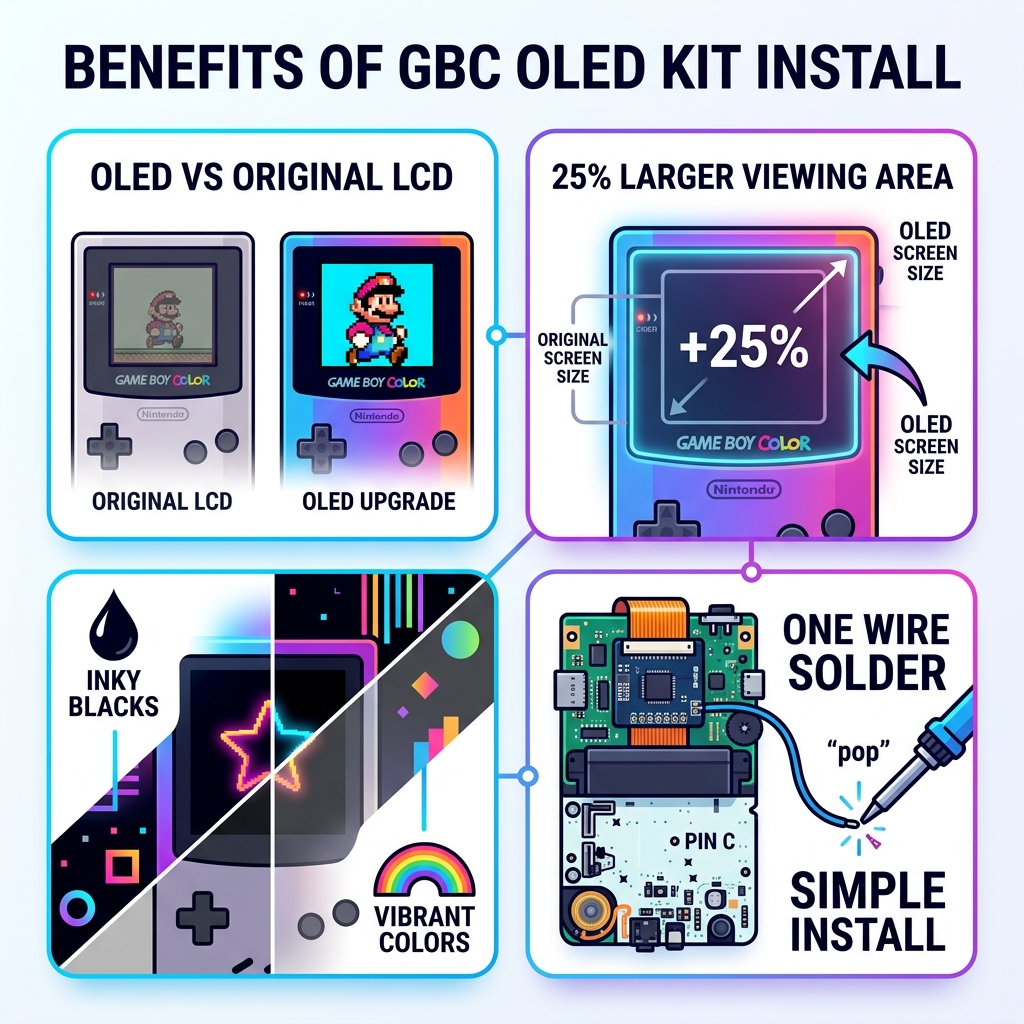
A GBC OLED kit install is one of the best upgrades you can make to a classic Game Boy Color. It replaces the dim, unlit original screen with a vivid AMOLED display — giving you deeper blacks, brighter colors, and a viewing area that’s 25% larger than stock.
Here’s a quick overview of what the process involves:
- Disassemble your Game Boy Color using a Y2 tri-wing and Phillips screwdriver
- Prepare the shell with a laminated-ready or pre-trimmed replacement shell
- Connect the OLED screen by seating the ribbon cable onto the motherboard
- Solder one wire from the driver board to Pin C on the power switch
- Test the screen before closing the shell
- Reassemble and enjoy your upgraded display
The whole mod only requires soldering a single wire — making it one of the more approachable console mods out there, even for beginners.
The original Game Boy Color launched without a backlit screen. Playing in anything less than bright light was a real struggle. Even popular IPS screen upgrades, while a big step forward, can’t match what OLED technology brings to the table. The contrast, color depth, and sharpness of an AMOLED panel genuinely transform the experience.
In this guide, you’ll get everything you need — tools, parts, step-by-step instructions, and tips to avoid the most common mistakes.
Why Upgrade to a GBC OLED Screen?
If you have ever squinted at an original Game Boy Color screen under a desk lamp, you know the struggle. While the retro charm is there, the technology is undeniably dated. Upgrading to an OLED (Organic Light Emitting Diode) screen isn’t just a minor tweak; it is a generational leap for your handheld.
The most striking feature of the GBC OLED kit install is the “inky” blacks. Unlike traditional LCDs that use a backlight to shine through pixels, OLED pixels produce their own light. When a pixel is black, it is completely off. This results in infinite contrast that makes colors “pop” in a way that even high-end IPS screens can’t replicate.
Furthermore, these kits typically utilize panels sourced from devices like the BlackBerry Q10, which offer incredible pixel density. With 16:1 integer scaling, your games look crisp and sharp without the blurring or distortion found on cheaper replacement screens. You also gain a display area that is 25% larger than the original, filling out the lens area much more effectively.
| Feature | Original LCD | IPS Mod | OLED (AMOLED) Mod |
|---|---|---|---|
| Backlight | None (Reflective) | Yes (LED) | Yes (Self-emissive) |
| Contrast | Poor | Good | Perfect (Inky Blacks) |
| Screen Size | 100% (Stock) | ~115% – 125% | 125% (25% Larger) |
| Colors | Washed out | Vibrant | Extremely Vibrant |
| Scaling | N/A | Variable | 16:1 Integer Scaling |
Beyond the visuals, many of these kits, such as the OLED laminated touch screen for Game Boy Color (GBC) backlight kit | Hispeedido, come “laminated.” This means the screen is pre-bonded to the glass lens, which eliminates the annoying air gap where dust usually gets trapped. For more professional advice on choosing the right display, check out our more info about screen replacement tips.
Essential Tools and Components for the Mod
Before we crack open your childhood console, we need to make sure your workbench is ready. A successful GBC OLED kit install requires a mix of precision tools and the specific components included in your kit.
What’s in the Box?
Typically, a high-quality kit like the Game Boy Color OLED Q10 Backlight Kit with Touch Screen OSD | Retro Gaming Parts will include:
- AMOLED Panel: The star of the show, often laminated to a glass lens.
- Driver PCB/Ribbon Cable: The “brain” that translates the GBC’s signals for the OLED screen.
- Thin Hookup Wire: Usually just one or two wires for power and optional functions.
- Insulation Film/Acrylic Strips: To prevent short circuits and help center the screen.
Tools You Will Need
- Y2 Tri-wing Screwdriver: For the outer shell screws.
- 00 Phillips Screwdriver: For the internal motherboard screws.
- Soldering Iron & Solder: You only need to solder one wire, but a fine-tip iron is best.
- Kapton Tape: Essential for insulating the PCB and preventing shorts.
- Microfiber Cloth & Canned Air: To keep the internals dust-free.
- Tweezers: Helpful for manipulating small ribbon cables.
While you’re at it, this is a great time to refresh your console’s feel. You might want to learn about button modding techniques to ensure your d-pad and A/B buttons feel as snappy as the new screen looks.

Step-by-Step GBC OLED kit install Guide
Ready to begin? Clear off a flat, soft surface to work on. We recommend laying down a silicone mat or a soft towel to prevent scratching your shell or the new OLED lens.
Disassembling the Console
- Remove the Batteries: Never work on a powered console.
- Unscrew the Shell: Use your Y2 Tri-wing screwdriver to remove the six screws on the back. Keep these safe—original screws are often higher quality than replacements!
- Open the Case: Gently lift the back half of the shell off.
- Disconnect the Ribbon Cable: Locate the wide ribbon cable at the top of the motherboard. Gently slide the two locking tabs upward with your fingernail or a plastic spudger. The cable should slide out easily.
- Remove Motherboard Screws: Use the Phillips 00 screwdriver to remove the 2-3 screws holding the PCB to the front shell.
- Lift the Motherboard: Carefully lift the PCB out, being mindful of the speaker, which is usually tucked into a circular cutout.
For a deeper dive into shell swaps, see our guide to changing your Game Boy case. If you have performed an IPS mod before, many of these steps will feel familiar; you can find more tips for installing IPS displays to compare the processes.
Preparing the Shell and Motherboard for GBC OLED kit install
This is where precision matters. If you are using an original shell, you would normally have to trim away a significant amount of plastic. However, we strongly recommend using “Laminated Ready” shells. These are pre-molded to fit the OLED screen perfectly without any cutting. You can find the best replacement shells for Game Boy Color on our site to save yourself the headache of manual trimming.
Motherboard Prep:
- Trim Cartridge Pins: On the back of the motherboard, the pins for the cartridge slot can be quite sharp and long. Use flush cutters to trim the tips of the pins behind where the screen will sit.
- Apply Kapton Tape: Cover those trimmed pins with a layer of Kapton tape. This prevents the pins from piercing the ribbon cable or shorting against the driver board.
- Static Protection: Electronics are sensitive. If possible, wear an anti-static wrist strap or touch a grounded metal object before handling the PCB.
Soldering and Connecting the GBC OLED kit install
Now for the “scary” part—soldering. Don’t worry, it is much easier than it sounds!
- Identify Pin C: Look at the power switch on your GBC motherboard. There are several pins labeled. You are looking for the pin marked “C.”
- Solder the Wire: Take the thin wire included in your kit. Solder one end to the “BAT” or “PWR” pad on the OLED driver board, and the other end to Pin C on the GBC power switch. This provides the necessary voltage to power the AMOLED panel.
- Connect Ribbon Cables: Connect the small ribbon from the OLED panel to the driver board. Then, connect the main ribbon from the driver board into the GBC’s original screen port. Ensure the dark brown side of the ribbon faces up and the locking tabs are pushed back down securely.
- Insulate the Driver Board: Use Kapton tape or the provided insulation film to wrap the driver board. This ensures that when you fold the console back together, nothing metal touches the motherboard.
If you happen to notice any scratches on your original components while working, read our guide on repairing scratched screens to get everything looking mint.
Operating the Touch Screen OSD and Features
One of the coolest parts of a modern GBC OLED kit install is the On-Screen Display (OSD) menu. Gone are the days of fumbling with button combinations; most kits now use a touch-sensitive area at the top of the screen (behind the lens).
- Activation: Touch and hold the top of the screen for about 5 seconds to bring up the menu.
- Navigation: Once the menu is open, you can slide your finger to scroll through options or tap to select.
- Customization:
- Brightness: Choose from 10 different levels. (Note: OLEDs are very bright, so the lowest setting is often perfect for night gaming).
- Pixel Effects: You can toggle between a raw digital look and “Retro Pixel” modes that simulate the original LCD grid.
- Logo Color: You can actually change the color of the “Game Boy Color” logo at the bottom of the screen! There are usually 32 different colors to choose from.
- FRM Blending: This helps with “flicker” effects used in some original games to simulate transparency.
You can see these features in action on kits like the GBC OLED AMOLED Laminated Touch Screen OSD RETRO PIXEL Kit For GameBoy Color.
Troubleshooting Your GBC OLED kit install
If you flip the switch and nothing happens, don’t panic. Here are the most common fixes:
- Short Circuits: This is the #1 cause of issues. Double-check that your Kapton tape is covering all sharp pins and that the driver board isn’t touching the motherboard.
- Ribbon Seating: If the screen is white or garbled, the ribbon cable might be slightly crooked. Open the tabs, re-seat the cable firmly, and lock it again.
- Screw Pressure: If you see white spots on the screen, your Phillips screws might be too tight. Back them off a quarter turn. Overtightening can also cause fixing unresponsive buttons issues if the shell is warped.
- Bench Testing: Always test the screen before you peel off the adhesive and stick it into the shell. This “dry run” ensures the kit works before it’s permanently installed.
Frequently Asked Questions about GBC OLED Mods
Does the OLED kit require shell trimming?
If you use your original Nintendo shell, yes, significant trimming is required to fit the larger 25% display. We highly recommend buying a “laminated-ready” aftermarket shell to avoid this. It makes the GBC OLED kit install a “drop-in” experience.
How does OLED battery life compare to IPS?
OLED is generally very efficient because black pixels consume zero power. However, because these screens are much brighter than the original, you may see a slight decrease in battery life compared to a stock console. Using high-quality rechargeable AA batteries or a LiPo battery mod is recommended.
Is soldering mandatory for the OLED screen?
For most kits, yes, you must solder one wire to Pin C on the power switch to provide enough power for the AMOLED panel to function. Without this wire, the screen will likely remain black even if the console turns on.
Conclusion
Completing a GBC OLED kit install is a rewarding project that breathes new life into one of the greatest handhelds ever made. By following these steps—testing your components, insulating your boards, and carefully soldering that single power wire—you’ll transform your Game Boy into a modern powerhouse with a display that rivals current-gen smartphones.
At Ganhos Reais, we love seeing classic hardware preserved and improved. Once you’ve mastered the GBC, why not look into an OLED mod installation for retro consoles for your other handhelds?
Ready for your next project? Explore more modding guides and keep the retro spirit alive!
