
The Ultimate Guide to Customizing Your Nintendo Switch Buttons
Why Joy Con Button Replacement Is Worth Doing Yourself
Joy con button replacement is one of the most satisfying DIY repairs you can do on your Nintendo Switch – and it’s more approachable than you might think.
Here’s a quick overview of what the process involves:
- Gather your tools – You’ll need a Tri-wing Y00 screwdriver, a Phillips #00, a plastic spudger, and tweezers.
- Buy replacement buttons – Full sets run between $9.99 and $16.99. Popular options include high-quality third-party kits with strong user ratings.
- Disassemble carefully – Remove the back panel, disconnect the battery, and handle ribbon cables gently.
- Swap the buttons – Lift out old buttons, align new ones using the orientation notches, and reseat the rubber membranes.
- Reassemble – Work in reverse order, avoiding overtightening screws.
- Test – Check every button responds correctly before closing up.
The whole job typically takes 30 minutes to 1 hour, depending on which Joy-Con you’re working on.
So why bother? Because Joy-Con buttons take a beating. After hundreds of hours of gameplay, they wear down, stick, or stop responding cleanly. Buying a brand new controller can cost $70+. Replacing the buttons yourself? Often under $15 in parts.
Beyond cost savings, there’s another reason people do this: customization. Replacement buttons come in dozens of colors and finishes – chrome, jelly, two-tone, translucent. It’s an easy way to give your Switch a completely fresh look without touching the internals in any complicated way.
One thing worth knowing upfront: the right Joy-Con is more complex than the left. It houses an IR sensor, a Bluetooth antenna, and an NFC antenna, all of which require extra care during disassembly. That doesn’t make it impossible – it just means you need to go a little slower and follow the steps carefully. If you want a quick reference for the controller family itself, the Nintendo Switch Joy-Con overview is a useful background resource.
The guide below walks you through everything, from tools to reassembly, so you can do this confidently the first time.
Essential Tools and Parts for Joy Con Button Replacement
Before we crack open those plastic shells, we need to make sure we aren’t using a butter knife and a prayer. Precision electronics require precision tools. If you use the wrong screwdriver, you’ll strip the soft screws Nintendo uses, and then you’re looking at a much more frustrating afternoon.
The Repair Toolkit
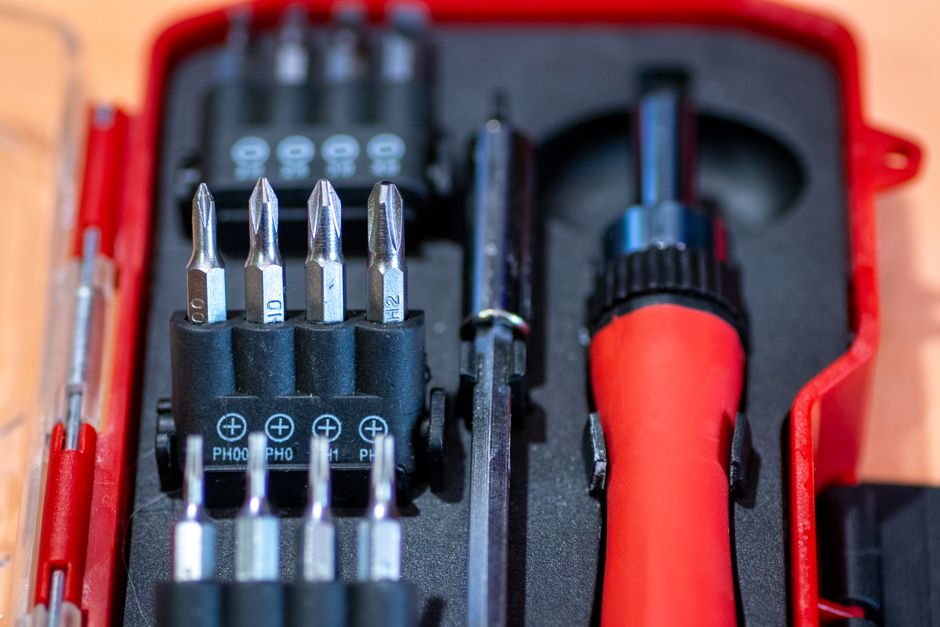
To perform a successful joy con button replacement, you’ll need a specific set of tools. We recommend having these laid out on a clean, light-colored microfiber mat so you don’t lose any tiny screws:
- Tri-wing Y00 Screwdriver: This is non-negotiable. Nintendo uses proprietary Y-shaped screws on the outer shell.
- Phillips #00 and #2 Screwdrivers: Most internal screws are standard Phillips, but they are very small.
- Plastic Spudger or Opening Pick: Essential for prying the shell apart without scarring the plastic.
- Precision Tweezers: You’ll need these to handle fragile ribbon cables and to place the new buttons into their tiny slots.
Sourcing Your Parts
When it comes to the buttons themselves, you have choices. You can go for standard OEM-style replacements if yours are just worn out, or you can dive into aesthetic modding. Various specialized manufacturers offer massive variety. You can find everything from “Atomic Purple” translucent sets to chrome gold or two-tone jelly buttons.
| Component | Estimated Cost | Material Options |
|---|---|---|
| Full Button Set (ABXY, D-Pad, Triggers) | $9.99 – $14.99 | ABS Plastic, Soft-touch, Chrome, Jelly |
| SL/SR Button Boards | $11.99 | OEM-spec PCB with Flex Cable |
| Button Covers (L/R/ZL/ZR) | $9.99 | Hard Plastic |
| Full Toolkit | $10.00 – $15.00 | Steel bits with ergonomic handles |
If you are new to this, we highly recommend checking out our button-replacement-tips-for-beginners to avoid common pitfalls like losing springs or mixing up screw lengths.
Step-by-Step Guide to Right Joy-Con Disassembly
The right Joy-Con is the “final boss” of controller repair. While the left Joy-Con is relatively straightforward, the right one is packed with extra tech. It contains the IR Camera (used for games like Ring Fit Adventure), the NFC antenna (for Amiibo), and a slightly different internal bracket.
Navigating the Right Joy-Con Internal Complexity
When you open the right Joy-Con, it feels a bit like a game of Operation. There are several components you need to be aware of:
- The IR Sensor: Located at the bottom. It’s connected by a very thin ribbon cable.
- The NFC/Bluetooth Antenna: This is a small grey or black square piece that often sits on top of the battery or the internal frame.
- Ribbon Cables: These are the flat, orange “wires” that connect everything. They are held in by tiny locking flaps. If you pull them without releasing the lock, you’ll break the connector.
If your buttons are sticking or failing, it might not just be the plastic; sometimes the internal SL/SR button boards get bent. You can find replacement SL/SR button boards if you need to replace the internal electronics as well. For those dealing with physical stickiness, our guide on repairing-sticky-or-broken-buttons offers deep-cleaning tips that might save you from a full replacement.
Installing New Face Buttons for Joy Con Button Replacement
Once you have removed the back panel and the battery, you will need to unscrew the internal mid-frame to reach the motherboard. The motherboard is the only thing holding the face buttons in place. Once those screws are out, the buttons will become loose.
Crucial Tip: Orientation Notches Nintendo buttons are not perfectly round. Each button (A, B, X, Y) has specific “notches” or teeth on the sides. These notches ensure that you can’t accidentally put the “A” button in the “X” slot, and they ensure the button is oriented correctly so it doesn’t get stuck.
- Lift the Motherboard: Carefully flip it over (be mindful of the ribbon cables still attached).
- Remove Rubber Membranes: These are the grey conductive pads. Lift them gently with tweezers.
- Swap Buttons: Drop your new buttons into the slots. Rotate them until they fall into their notches.
- Replace Membranes: Ensure the black conductive circles are facing down toward the motherboard.
If you’re also looking to refresh your triggers, you can pick up replacement L/R/ZL/ZR button covers to match your new face buttons. This process is very similar to replacing-worn-out-buttons-on-psp, where alignment is key to a tactile “click.”
For more detailed joystick help, see our diy-joystick-replacement-tutorial.
Reassembly and Troubleshooting Your Joy Con Button Replacement
Reassembly is more than just doing the steps in reverse. It’s about “finesse.” If you rush this part, you might end up with a Joy-Con that creaks or buttons that feel “mushy.”
Common Mistakes to Avoid During Reassembly
We’ve seen it all. Here is what usually goes wrong:
- Overtightening Screws: The internal screws go into plastic. If you crank them too hard, you’ll strip the threads. Tighten until you feel resistance, then stop.
- Pinched Ribbon Cables: As you close the shell, ribbon cables like to wander into the path of the screw holes. Use your spudger to tuck them safely into the empty cavities.
- Screw Confusion: The silver screws and black screws are different lengths. Using a long screw in a short hole can punch through the front of your Joy-Con shell.
- Dirty Contacts: If you touched the gold pads on the motherboard with your fingers, the oils can cause unresponsive buttons. Clean them with 90% isopropyl alcohol before closing.
For more on maintaining the longevity of your parts, check out our guide on cleaning-and-restoring-old-console-buttons.
Testing and Troubleshooting Your Joy Con Button Replacement
Before you put those final four Tri-wing screws back in, sync the Joy-Con to your Switch and go to Settings > Controllers and Sensors > Test Input Devices.
- Button is unresponsive? The ribbon cable might not be seated fully, or the rubber membrane is misaligned.
- Button feels mushy? The motherboard screws might be too loose, or the membrane isn’t sitting flat.
- SL/SR buttons aren’t working? These are notoriously finicky. Check that the ribbon cable isn’t creased too sharply.
If you find yourself with a button that just won’t register, our tutorial on fixing-unresponsive-buttons-on-game-boy covers the physics of conductive pads which applies here too. You can also find more specific troubleshooting at repairing-sticky-or-broken-buttons-2.
Frequently Asked Questions about Joy-Con Repairs
Is the Right Joy-Con harder to mod than the Left?
Yes, absolutely. While the left Joy-Con is mostly just buttons and a joystick, the right Joy-Con is the “brains.” The inclusion of the IR camera and the NFC antenna makes the internal layout much tighter. You have more ribbon cables to manage and less physical space to work with. If it’s your first time doing a joy con button replacement, we recommend starting with the left one to get a feel for the clips and connectors.
Will this process work on Switch OLED models?
Generally, yes. The Joy-Cons for the original Switch (HAC-001) and the Switch OLED (HEG-001) are extremely similar internally. However, there are very minor differences in the internal plastic brackets and the way the antennas are routed. Most high-quality button sets are designed to be compatible with both models. Just be sure to double-check the product listing before you buy.
How much does a full button swap typically cost?
If you already own the tools, a full joy con button replacement is incredibly cheap.
- Buttons only: $10 – $13.
- Buttons + Tools: $20 – $25.
- Full Customization (Shell + Buttons): $30 – $40.
Compare that to $70-$80 for a new set of Joy-Cons, and the DIY route is the clear winner for both your wallet and the environment. You can find various sets from reputable modding suppliers to get started.
Conclusion
At Ganhos Reais, we believe that hardware shouldn’t be disposable. Whether you are performing a joy con button replacement to fix a sticky “A” button or you’re completely overhauling your Switch with a retro Super Famicom aesthetic, you are extending the life of your console.
Repairing your own gear is a rite of passage for any gamer. It gives you a deeper appreciation for the engineering inside your favorite handheld and the confidence to tackle bigger projects, like OLED mods or shell swaps.
Ready to start your next project? Check out our More info about button services for more guides and professional tips on keeping your controllers in peak condition. Happy modding!
