
The Ultimate Guide to GBA OLED Screen Swaps
Why the GBA OLED Mod Tutorial Is the Best Upgrade for Your Game Boy Advance
A GBA OLED mod tutorial walks you through replacing the original unlit GBA screen with a modern OLED or AMOLED display — delivering deeper blacks, vibrant colors, and a viewing experience the original hardware never had.
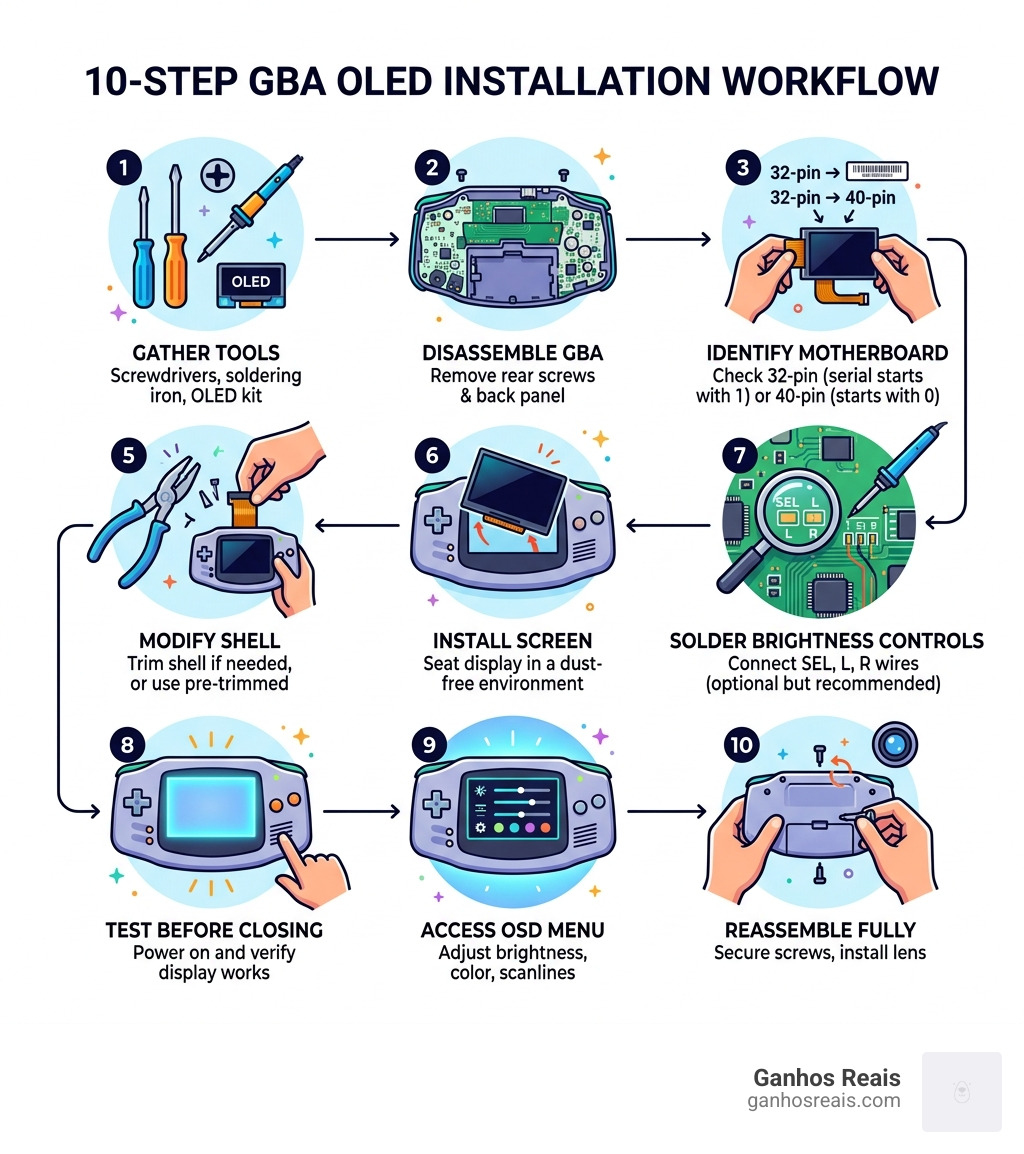
Here’s a quick overview of the process:
- Gather tools – Tri-wing screwdriver, Phillips #00, soldering iron, and your OLED kit
- Disassemble the GBA – Remove rear screws, back panel, and ribbon cable
- Identify your motherboard – Check if you have a 32-pin or 40-pin board (serial starting with “1” = 32-pin, “0” = 40-pin)
- Prepare the OLED kit – Connect the ribbon cable and apply insulating film
- Modify the shell – Trim if needed, or use a pre-trimmed shell
- Install the screen – Seat the display in a dust-free environment
- Solder brightness controls – Connect SEL, L, and R wires to the correct pads (optional but recommended)
- Test before closing – Power on and verify the display works
- Access the OSD menu – Adjust brightness, color, and scanline settings
- Reassemble fully – Secure screws, install the lens, and enjoy
The original Game Boy Advance had no backlight at all — making certain games nearly unplayable in low-light conditions. Today, OLED kits change everything. Some even use AMOLED panels sourced from repurposed smartphone displays, giving your 20-year-old handheld a screen that rivals modern devices.
Whether you’re a first-time modder or you’ve done a few builds before, this guide covers every step — tools, soldering, troubleshooting, and aftercare.
Essential Tools and Materials for your GBA OLED Mod Tutorial
Before we crack open that classic purple (or orange, or silver) shell, we need to ensure our workbench is prepared. Modding a handheld is a delicate dance of precision and patience. Using the wrong screwdriver or a messy soldering iron can turn a fun afternoon project into a permanent paperweight.

To follow this GBA OLED mod tutorial successfully, you will need:
- Tri-wing Y1 Screwdriver: This is essential for the outer screws of the GBA shell.
- Phillips #00 Screwdriver: Used for the internal motherboard screws.
- Soldering Iron & Rosin-core Solder: Necessary if you want to enable brightness controls via the L/R/Select buttons.
- Kapton Tape: High-heat resistant tape used to prevent short circuits on the motherboard.
- Flush Cutters: For trimming plastic bits inside the shell (if you aren’t using a pre-trimmed one).
- ESD-safe Tweezers: Perfect for handling tiny ribbon cable latches and wires.
- Microfiber Cloth & Isopropyl Alcohol (90%+): For cleaning the screen and motherboard contacts.
For those just starting their journey into hardware customization, check out our more info about screen modding for beginners to get a solid foundation.
Choosing the Right OLED Kit
Not all screens are created equal. While IPS (In-Plane Switching) screens have been the gold standard for years, the new wave of AMOLED panels has arrived. Many of these kits actually repurpose high-quality panels from devices like the 2013 BlackBerry Q10. These “laminated” displays bond the screen directly to the glass lens, eliminating the gap where dust usually settles. You can find more info about custom screen mods for retro consoles to see which technology suits your eyes best.
Shell Selection and Preparation
You have two choices here: the “hard way” or the “smart way.” The hard way involves using your original shell and manually trimming the internal plastic pillars with flush cutters to make room for the larger OLED panel. The smart way involves purchasing a pre-trimmed shell. These are molded specifically for modern screen kits, saving you hours of tedious filing and reducing the risk of the screen sitting crookedly. Learn more info about upgrading handheld displays for better visuals to see how shell choice impacts your final build.
Step-by-Step Disassembly and Motherboard Identification
Now, let’s get into the guts of the machine. The Game Boy Advance is a robust piece of 2001 engineering, but the ribbon cables are twenty years old and can be brittle.
- Remove the Battery Cover: Pinch the tab and pull it outward. Remove any AA batteries.
- Unscrew the Rear Housing: Use your Tri-wing Y1 screwdriver to remove the six screws on the back. There is also one Phillips #00 screw located inside the battery compartment.
- Separate the Shell: Gently lift the back panel off. Be careful not to lose the side bumpers or the power switch plastic, as they will fall out easily.
- Remove Internal Screws: There are usually 2 or 3 Phillips screws holding the motherboard to the front shell.
- Release the Ribbon Cable: At the top of the motherboard, you’ll see the wide ribbon cable connected to the original LCD. Use your tweezers to slide the two grey/brown locking tabs upward. The cable should then slide out freely.
Identifying 32-pin vs 40-pin Motherboards
This is a critical step in any GBA OLED mod tutorial. Nintendo produced two main versions of the GBA motherboard.
- Look at the serial number inside the battery compartment or just above the pins on the motherboard.
- If the number starts with a “1”, it is a 32-pin model.
- If the number starts with a “0”, it is a 40-pin model. Most modern OLED kits come with a ribbon cable that supports both, but you may need to fold the cable differently depending on your pin count. For a deeper dive into these variations, see our more info about GBA screen mod tutorials.
Cleaning and Maintenance
While the console is open, it is the perfect time for some spring cleaning. Use a cotton swab dipped in Isopropyl Alcohol to clean the button contacts on the motherboard and the power switch. Over time, carbon buildup can make buttons feel unresponsive. For more tips on keeping your hardware pristine, read our more info about installing IPS displays on Game Boy.
Preparing and Installing the OLED Screen Kit
The OLED panel is the heart of this mod. Unlike the original screen, which relied on reflective light, the OLED panel emits its own light from every individual pixel.
| Feature | Original LCD | IPS Mod | OLED/AMOLED Mod |
|---|---|---|---|
| Contrast Ratio | Poor (No Backlight) | High | Infinite (True Blacks) |
| Power Draw | Very Low | Moderate | High |
| Color Saturation | Muted | Vibrant | Extreme |
| Viewing Angles | Poor | Excellent | Perfect |
For a masterclass in why these displays are so transformative, visit our more info about the definitive modding masterclass.
Handling the OLED Ribbon Cable
The ribbon cable is incredibly thin. When connecting the screen to the adapter PCB, ensure the “click” is felt but not forced. You will likely need to fold the ribbon cable to fit it behind the screen. Avoid sharp creases; think of it more like a gentle “U” bend. Static electricity is the enemy here, so touch a grounded metal object before handling the electronics. You can find more info about LCD modding for handheld consoles regarding cable management.
Securing the Display in the GBA OLED mod tutorial
Dust is the ultimate villain of screen modding. Even a single speck of hair trapped between the lens and the OLED will look like a giant log once the screen is powered on.
- Work in a “clean room” environment (many modders use a bathroom after running a hot shower to settle the dust).
- Apply the adhesive gasket to the shell first.
- Drop the OLED into the centering bracket.
- Peel the protective film at the very last second before sealing.
If you are worried about alignment, read more info about OLED mod installations for retro consoles.
Soldering and OSD Configuration for the GBA OLED mod tutorial
While some kits are “drop-in” and work without soldering, you’ll lose out on the best features: brightness control and the On-Screen Display (OSD) menu.
To enable these, you need to solder three thin wires from the screen’s ribbon cable to the motherboard:
- SEL (Select): Solder to the TP2 pad on the motherboard.
- L (Left Trigger): Solder to the top contact of the L-button switch.
- R (Right Trigger): Solder to the top contact of the R-button switch.
This allows you to hold Select + L or Select + R to cycle through brightness levels. We’ve detailed the visual benefits of this in our more info about brightening your life with OLED and IPS modding.
Accessing the On-Screen Display (OSD)
Modern OLED kits often feature an OSD. By holding a specific button combination (usually Select + L + R for 3 seconds), a menu appears on the screen. From here, you can:
- Change color palettes (e.g., Grayscale, Vivid, or Retro Green).
- Toggle Scanlines to mimic the look of an old CRT or original LCD grid.
- Adjust the vertical and horizontal position of the image.
Explore more info about DIY retro handheld screen upgrades to see what OSD features are currently trending.
Touch Sensor Placement
Some kits include a tiny copper touch sensor. Instead of soldering wires, you can tape this sensor to the top of the internal shell. Tapping the top of your GBA will then change the brightness. It feels like magic, but ensure the copper doesn’t touch any metal parts of the motherboard, or it will trigger randomly. For those interested in the technical safety of these connections, the IPC standards provide great context on electronics assembly.
Troubleshooting and Final Assembly
Before you tighten those final six Tri-wing screws, test everything. Pop in a game, turn the volume up, and check every button.
Common Pitfalls and How to Fix Them:
- Buttons Bottoming Out: If your A or B buttons feel “stiff” or don’t click, your screw posts might be a fraction of a millimeter too long, or the screen is pressing against the board. Try loosening the internal motherboard screws slightly or filing down the plastic pegs inside the shell.
- Mushy D-Pad: Ensure the rubber membranes are seated correctly on the plastic pegs. We recommend using original Nintendo membranes if possible, as aftermarket ones can sometimes feel too soft.
- Flickering Image: This usually means the ribbon cable isn’t fully seated or is slightly crooked in the latch. Unlatch, re-seat, and lock it again.
- Short Circuits: If the GBA won’t turn on at all, check that you haven’t pinched a wire or that the back of the OLED isn’t touching the motherboard pins. Use Kapton tape to insulate everything!
Battery Life Optimization: OLED screens are power-hungry. While the original GBA could last 15+ hours on AA batteries, an OLED mod might cut that to 5–7 hours. We highly recommend a rechargeable Li-ion battery mod to keep the fun going longer.
Frequently Asked Questions about GBA OLED Mod Tutorial
Why is my screen showing a white or flickering image?
This is almost always a ribbon cable issue. The connection between the motherboard and the OLED kit must be perfectly horizontal. If it’s tilted even slightly, the data signals won’t reach the screen correctly.
How do I fix buttons that feel “mushy” after the mod?
This happens when the motherboard isn’t sitting flush against the front shell. Check if the OLED ribbon cable is “bunched up” behind the screen. It needs to be folded neatly to allow the motherboard to sit flat.
Does the OLED screen drain the battery faster than an IPS?
Generally, yes. OLEDs consume more power when displaying bright, white images, though they are very efficient when displaying black. Because the GBA’s processor wasn’t designed for this draw, we suggest using high-capacity 2700mAh NiMH rechargeables or a dedicated battery mod.
Conclusion
At Ganhos Reais, we believe that the Game Boy Advance is the peak of handheld form factors. By following this GBA OLED mod tutorial, you aren’t just fixing an old toy; you’re preserving a piece of gaming history and giving it the “definitive” display it always deserved. The vibrant contrast and perfect viewing angles make classic titles like Metroid Fusion or The Legend of Zelda: The Minish Cap look better than they ever did on original hardware.
Ready to start your build? Make sure you have the best foundation by choosing one of our premium GBA shells to house your new masterpiece. Happy modding!
