
How to install an IPS screen on your favorite console
Why an IPS Kit Installation Guide Is the Key to Upgrading Your Retro Console
An IPS kit installation guide is your roadmap to transforming a dim, washed-out classic Game Boy screen into a crisp, vibrant modern display — without ruining your beloved hardware in the process.
Here is a quick overview of what installing an IPS kit involves:
- Gather your tools — tri-point screwdriver, flush cutters, tweezers, Kapton tape, and optionally a soldering iron
- Dry test the kit first — connect the screen without mounting it to confirm it works before voiding your warranty
- Disassemble your console — carefully remove screws and separate the shell halves
- Modify the shell if needed — trim for screen clearance, cut alignment pins, and clip cartridge slot pins
- Install and connect the IPS screen — seat the display, route the ribbon cable, and secure with adhesive or brackets
- Solder for brightness control (optional) — connect wires to specific pads for button-controlled brightness levels
- Test before closing up — power on and check the display before final reassembly
The upgrade is popular for good reason. Classic handhelds like the Game Boy DMG, Game Boy Color, GBA, and GBA SP all shipped with reflective or front-lit screens that are nearly impossible to see in low light. A modern IPS panel fixes that completely — sharper pixels, true backlight, and often a larger viewing area.
But the installation process has real risks. A bent ribbon cable, a misplaced solder point, or a cracked LCD from too much shell pressure can turn a fun weekend project into an expensive mistake.
That is exactly why a step-by-step guide matters — whether you are modding your first console or your fifth.
Essential Tools and Preparation for Your IPS Kit Installation Guide
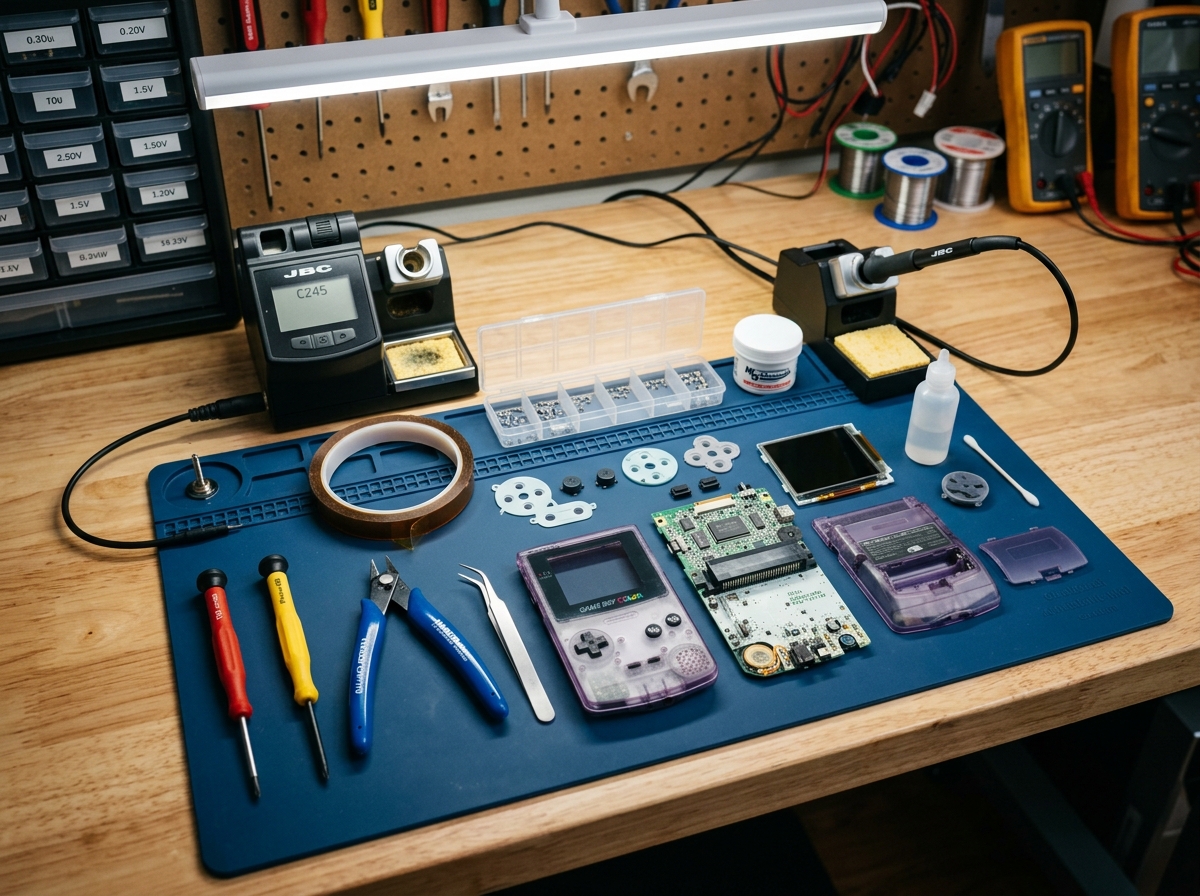
Before we dive into the guts of your handheld, we need to make sure your workbench is ready. Think of this like surgery—you wouldn’t want a surgeon looking for a scalpel halfway through a procedure, and you certainly don’t want to be hunting for a tri-point screwdriver while your Game Boy Advance is lying open and vulnerable.
Our IPS kit installation guide starts with the right gear. Most modern kits, whether from FunnyPlaying or Hispeedido, require a specific set of precision tools:
- Tri-point Y1 Screwdriver: Essential for those pesky “Y” shaped security screws Nintendo loves.
- Phillips J1 Screwdriver: For the internal screws holding the motherboard in place.
- Flush Cutters: These are non-negotiable if you are trimming an original shell. They allow you to cut plastic flush against the surface.
- Tweezers: Anti-static versions are best for handling delicate ribbon cables.
- Kapton Tape: This heat-resistant, non-conductive tape is our best friend for insulating points and securing cables.
- Soldering Iron & Flux: Optional for some kits, but required if you want on-screen display (OSD) menus or brightness control.
Preparation isn’t just about tools; it’s about safety. We always recommend wearing eye protection when using flush cutters, as tiny shards of plastic can fly off at high speeds when you’re trimming shell posts. For more detailed safety advice, check out our diy-screen-replacement-safety-tips.
Interestingly, following manufacturer-specific instructions is a habit that spans many industries. Just as one might follow Floodstop Installation Instructions – IPS Plumbing for home maintenance, following the exact sequence for an IPS mod ensures that everything fits and functions as intended.
Performing a Dry Test for Your IPS Kit Installation Guide
We cannot stress this enough: always dry test your kit before you do anything permanent.
Most retailers have a strict warranty policy. Once you peel off the screen protector, apply adhesive, or solder the wires, you’ve basically “bought” the kit, regardless of whether it works. To perform a dry test:
- Carefully connect the IPS ribbon cable to the motherboard.
- Connect the LCD to the other end of the ribbon.
- Insert batteries (or a power supply) and turn the unit on.
- Check for dead pixels, flickering, or color issues.
If everything looks good, you can proceed with confidence. If you’re a complete novice, our screen-modding-tutorial-for-beginners covers the basics of handling these fragile components.
Identifying Motherboard Variants
Not all Game Boys are created equal. For example, the Game Boy Advance (AGB-001) comes in two main flavors: 32-pin and 40-pin motherboards.
To identify yours, look through the battery compartment or open the shell. A 40-pin model usually has a version number starting with “0,” while 32-pin models often start with “1.” The ribbon cable in your kit must match this pin count. Some modern “V5” kits include a universal ribbon that handles both, but you still need to know which connector to use. For a deeper dive into these hardware differences, see our guide on installing-ips-display-on-game-boy.
Shell Modification and Screen Alignment Techniques
Unless you purchased a pre-cut “IPS-ready” shell, you are going to need to do some plastic surgery. Original shells were designed for much thicker, smaller LCDs. To fit a modern IPS panel, we have to clear out the internal plastic walls and alignment pins.
When using flush cutters, aim to get the plastic as flat as possible. Any high spots can put pressure on the back of the LCD, which is the leading cause of “cracked screen” heartbreaks. After cutting, we often use a small file or sandpaper to smooth things out.
| Feature | OEM Hand-Trimmed Shell | Professional Pre-Cut Shell |
|---|---|---|
| Effort | High (requires 30-60 mins of cutting) | Low (Drop-in ready) |
| Precision | Variable (depends on your steady hand) | High (CNC machined or molded) |
| Aesthetics | Can look rough inside | Factory-clean finish |
| Risk | High (pressure points can break LCD) | Minimal |
If you’re feeling nervous about cutting your childhood console, our game-boy-advance-screen-mod-tutorial provides visual cues on exactly where to snip.
Trimming Cartridge Slot Pins
This is a step many beginners miss. On the back of the motherboard, the pins for the cartridge slot often poke through quite far. In a modded console, these sharp metal points can press against the new IPS ribbon cable or the screen itself.
We use flush cutters to trim these pins flat against the board. Warning: Wear your safety glasses here! Those pins fly like tiny needles. Once trimmed, we always cover the area with a piece of Kapton tape to prevent any electrical shorts. This is a standard practice in lcd-modding-for-handheld-consoles.
Securing the Laminated Display
Modern kits often feature “laminated” displays, meaning the lens and the LCD are fused together. This is a game-changer because it eliminates the possibility of dust getting trapped between the screen and the lens.
To secure the display:
- Alignment: Use the centering brackets if your kit provided them. They ensure the screen isn’t crooked.
- Adhesion: Apply the thin adhesive gaskets around the perimeter of the shell window.
- Dust Control: Even with a laminated screen, make sure the inside of the shell is clean. A quick blast of compressed air works wonders.
- Pressure: Never press down on the center of the screen. Only apply gentle pressure to the edges.
Proper alignment is the difference between a professional-looking mod and one that looks like a DIY disaster. For more on visual upgrades, visit upgrading-handheld-display-for-better-visuals.
Soldering and Finalizing Your IPS Kit Installation Guide
While many kits are “drop-in,” soldering is what unlocks the true power of an IPS mod. Without soldering, your screen will usually default to a medium brightness. By connecting just three small wires (usually to the L, R, and Select buttons), you can access OSD menus to change brightness, color palettes, and even add retro “pixel grid” effects.
On a GBA, the common points are TP2 (for Select), and the legs of the L and R triggers. For the GBA SP, you’ll often look for point Q12B. We recommend adding a tiny bit of flux to the pads on the ribbon cable first—this makes the solder flow much more easily. For a list of custom points for various models, see custom-screen-mods-for-retro-consoles.
Handling Ribbon Cables and Touch Sensors
Ribbon cables are the “nerves” of your console. They are incredibly thin and can only be bent a few times before the internal traces crack. When folding the cable to fit inside the shell, aim for a “gentle curve” rather than a sharp crease.
Many Hispeedido kits include touch sensors. These are small copper pads that allow you to change brightness by tapping the top of the shell. If the sensor is struggling to read your touch through the plastic, you can extend its surface area by sticking a small piece of copper tape to the inside of the shell and soldering it to the sensor pad. This keeps the mod looking clean while maintaining functionality, a core concept in keeping-it-real-with-authenticity-focused-screen-mods.
Final Testing and Reassembly
Before you tighten those final six tri-point screws, do one last check.
- Button Feel: Do the A and B buttons click properly? Sometimes a stray wire or a bit of plastic can make them feel mushy.
- Light Bleed: Turn the brightness to max in a dark room. If you see light leaking from the sides of the shell, you might need a bit more Kapton tape or a foam gasket.
- The “Rattle” Test: Give the console a gentle shake. If the screen moves, you need to add the provided foam spacers.
- The GBA SP Washer: If you’re modding an SP, don’t forget the tiny square nut that holds the battery cover screw. It’s very easy to lose!
Troubleshooting Common IPS Installation Issues
Even the pros run into trouble sometimes. If you flip the switch and nothing happens, don’t panic. Most issues are simple fixes.
- No Display, but Sound Works: This is almost always a poorly seated ribbon cable. Open the connector, push the cable in firmly, and lock it back down.
- Screen is White or Scrambled: Check for shorts. Ensure that no part of the IPS ribbon is touching the metal shield of the cartridge slot.
- Touch Sensor is “Ghosting”: If the brightness keeps changing on its own, the sensor might be too close to a power source or the shell is too tight. Try moving the sensor slightly.
- Logo Not Lighting Up (GBC Q5 Kits): Sometimes the “Game Boy Color” logo at the bottom doesn’t illuminate. You can often trigger a factory reset by holding the Start and Select buttons for 10 seconds.
For a comprehensive list of fixes, browse our category/screen section.
Fixing Display Artifacts and Flickering
If you notice horizontal lines or flickering, it’s usually a power issue. IPS screens draw significantly more power than original displays. Ensure your battery contacts are clean (use 90% isopropyl alcohol). In some cases, if you are using a very old console, the capacitors might be failing and unable to provide the stable voltage the new screen requires. Replacing these “caps” is a common next step for retro enthusiasts.
Frequently Asked Questions about IPS Screen Mods
Does installing an IPS kit void my warranty?
Yes, in almost all cases. Once you peel the adhesive or solder the wires, the kit is considered “installed.” This is why the dry test is the most important step in any IPS kit installation guide.
Why is my touch sensor not working through the shell?
Thicker aftermarket shells can sometimes block the capacitive signal. You can fix this by using a small piece of copper tape to create a larger “antenna” for the sensor inside the shell.
Do I need to solder for the screen to work?
For most modern kits, no. The screen will work at a default brightness level. However, soldering is required if you want to adjust that brightness or use the advanced OSD features.
Conclusion
Upgrading your classic handheld with an IPS display is one of the most rewarding projects a retro gamer can undertake. At Ganhos Reais, we believe that preserving these consoles doesn’t mean they have to stay stuck in the past. By following a proper IPS kit installation guide, you can enjoy your favorite childhood games with the clarity and color they always deserved.
Whether you’re working on a DMG, a GBC, or a GBA, the key is patience, the right tools, and a healthy respect for fragile ribbon cables. Once you see that backlit logo glow for the first time, you’ll never want to go back to an original screen again.
Ready for your next project? Explore more screen upgrade guides and keep your retro journey going!
