
The Ultimate Game Boy Color Screen Installation Guide
The Original GBC Screen Has a Problem — Here’s How to Fix It
Game Boy Color display install is one of the most popular retro gaming mods you can do — and for good reason. The original GBC screen has no backlight, washed-out colors, and is nearly impossible to see in anything but perfect lighting.
The good news? Replacing it is very doable, even for beginners.
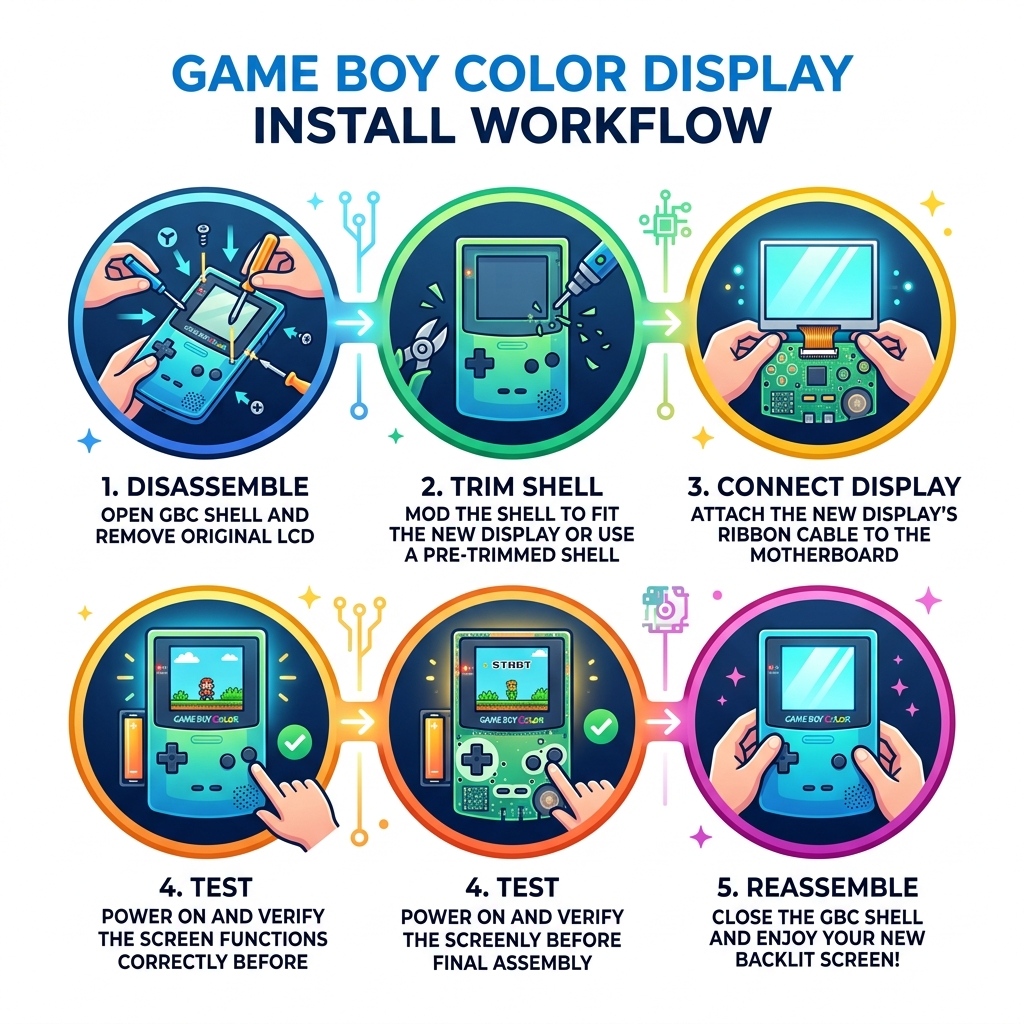
Here’s a quick overview of how a Game Boy Color display install works:
- Disassemble your GBC using a Y1 tri-wing and Phillips #1 screwdriver
- Remove the original LCD and disconnect the ribbon cable
- Trim the shell (or use a pre-trimmed shell) to fit the new display
- Connect the new display’s ribbon cable and optional touch sensor
- Test before reassembly to catch any issues early
- Reassemble and enjoy a crystal-clear, backlit screen
The three main display upgrade types are IPS LCD, AMOLED, and TFT — each with different brightness levels, color quality, and installation complexity. Some kits require no soldering at all. Others need just a single wire connection.
One modder who went through the full journey — from a basic IPS backlight mod all the way to an AMOLED upgrade — described the difference as making even a quality IPS screen look dull by comparison, with colors that make retro games look genuinely beautiful.
Whether you’re restoring a childhood console or just want a screen you can actually see, this guide walks you through everything — tools, trimming, connecting hardware, and troubleshooting.
Why Upgrade Your Handheld? Choosing the Right Display Kit
When we look at the landscape of retro modding, the screen is the single most impactful change you can make. The original reflective TFT LCD was a marvel when the Game Boy Color launched, but by modern standards, it’s a struggle to use. Today, we have three primary contenders for your Game Boy Color display install.
IPS LCD (In-Plane Switching): This is the gold standard for most modders. IPS screens offer incredible viewing angles (up to 178 degrees) and vibrant colors. Most high-quality kits feature a slightly larger viewing area than the original, requiring some shell modification but rewarding you with a massive, bright image.
AMOLED (Active-Matrix Organic Light-Emitting Diode): The newcomer on the block. AMOLED technology allows for “true blacks” because each pixel provides its own light. When a pixel is black, it is completely off. This results in infinite contrast and colors that pop with a level of saturation that IPS can’t quite match. These kits often come with a custom shell because the panel dimensions are very specific.
TFT (Thin-Film Transistor) Backlit: These are often “drop-in” kits. They are usually the same size as the original screen (2.45 inches), meaning you don’t have to trim your shell. While they aren’t as vibrant as IPS or AMOLED, they are much easier to install and consume less power.
| Feature | IPS LCD | AMOLED | TFT (Backlit) |
|---|---|---|---|
| Brightness | Very High | High | Moderate |
| Color Depth | Excellent | Superior | Good |
| Viewing Angle | Wide | Perfect | Narrow |
| Power Draw | Moderate | Moderate/High | Low |
| Installation | Moderate (Trimming) | Easy (Pre-cut shell) | Very Easy (Drop-in) |
Benefits of a Modern Game Boy Color Display Install
Upgrading isn’t just about brightness; it’s about fidelity. Modern kits offer “point-to-point” rendering, which means the pixels of the game align perfectly with the pixels of the new display, preventing blurriness. You get crystal-clear visuals that make 8-bit sprites look like they were designed for a modern smartphone.
Furthermore, many kits include On-Screen Display (OSD) menus. This allows us to toggle between different “pixel modes” (like a retro grid effect that mimics the original look) or adjust brightness levels on the fly. If you want to dive deeper into why these screens are a game-changer, check out our guide on lcd-modding-for-handheld-consoles.
Essential Tools and Preparation for a Game Boy Color Display Install
Before we crack open that Atomic Purple shell, we need the right gear. Using the wrong screwdriver is the fastest way to strip a screw and turn a 20-minute mod into a weekend-long headache.

The Must-Have Toolkit:
- Y1 Tri-wing Screwdriver: Required for the six external shell screws.
- Phillips #1 (#00 also works): Required for the internal motherboard screws.
- Plastic Spudger: For prying the old LCD and manipulating ribbon cables without causing shorts.
- Soldering Iron: Optional for some kits, but necessary if you want brightness control or OSD features.
- Kapton Tape: Essential for insulating the back of the screen and driver board to prevent short circuits against the motherboard.
- Flush Cutters/Hobby Knife: If you are modifying an original shell.
- Canned Air/Microfiber Cloth: Dust is the enemy! One speck under the lens will haunt you forever.
If you’re new to electronics, we recommend reading our screen-modding-tutorial-for-beginners to get comfortable with the basics.
Pre-Trimmed Shells vs. Manual Modification
This is a big decision for any Game Boy Color display install. To fit a modern IPS or AMOLED screen, the internal plastic “walls” of the original (OEM) shell must be removed.
- Manual Modification: Using flush cutters and a hobby knife, you’ll need to trim the top and bottom interior walls and often a small notch above the D-pad. It takes patience and a steady hand.
- Pre-Trimmed Shells: We highly recommend these for beginners. Companies manufacture these shells with the extra room already molded in. It guarantees a perfect fit and saves about 15 minutes of stressful plastic cutting.
You can find more details on choosing the right housing in our guide to the perfect-fits-the-best-replacement-shells-for-game-boy-color.
Testing Your Game Boy Color Display Install Before Reassembly
Never, ever close the shell until you’ve done a “dry test.” We’ve seen many modders install the screen, screw everything down, and then realize the ribbon cable wasn’t seated quite right.
- Connect the new LCD to the driver board.
- Connect the driver board ribbon to the GBC motherboard.
- Insert batteries (carefully) or use a DC power adapter.
- Turn the power switch on.
- Check for a backlight and image.
Safety Tip: Be extremely careful with the flat ribbon cables. If you insert them upside down (usually the dark brown or gold contacts should face the board, but check your kit’s manual), you risk burning out the console’s fuse. For more troubleshooting on this stage, see our game-boy-color-screen-replacement-tips.
Step-by-Step Guide to Disassembly and Shell Modification
Let’s get to work. Start by removing the battery cover and the AA batteries.
- Open the Shell: Use your Y1 tri-wing screwdriver to remove the six screws on the back. Two are hidden inside the battery compartment. Lift the back shell off gently.
- Disconnect the Ribbon: Locate the wide ribbon cable at the top of the motherboard. Use a spudger to slide the two plastic tabs upward. The cable should slide out effortlessly.
- Remove the Motherboard: Use your Phillips screwdriver to remove the three screws holding the PCB (motherboard) to the front shell.
- Extract the Old LCD: This is the tricky part. The original screen is held in by 20-year-old adhesive. Gently twist the front shell to gain leverage, then use a spudger to pry the LCD out. Don’t worry about breaking the old screen, but try to keep the adhesive intact if you aren’t replacing it with a bracket.
Critical Steps for a Successful Game Boy Color Display Install
Once the shell is empty, you need to prepare the “window” or aperture. Most IPS screens are larger than the original hole. If you are using an OEM shell, you’ll need to use a hobby knife to enlarge the viewing area.
Pro Tip: Use a 3D-printed alignment bracket. These are often included in high-quality kits. Instead of using double-sided tape (which makes the screen permanent and hard to adjust), a bracket holds the screen perfectly centered.
Before placing the new screen, use compressed air to blow out every single piece of plastic dust. Even a tiny shard can cause a “pressure spot” (a dark or discolored blotch) on your new display. For a deeper look at this process, visit our page on installing-ips-display-on-game-boy.
Connecting the Hardware: Soldering and Ribbon Cables
Now comes the “brains” of the operation. Modern kits use a driver board that sits between the screen and the Game Boy motherboard.
- Insulate the Board: Apply Kapton tape to the back of the LCD and any exposed metal on the driver board. This prevents “shorts” when the board is pressed against the GBC’s cartridge slot pins.
- Seat the Ribbon: Slide the driver board’s ribbon into the GBC motherboard’s connector. Ensure it is perfectly straight before pushing the tabs down.
- Position the Sensors: Most kits include a “touch sensor” for brightness. We recommend placing this under the IR port (the dark plastic at the top). This allows you to change brightness just by tapping the top of your Game Boy!
Is Soldering Required for Your Game Boy Color Display Install?
The short answer: Usually, but not always.
- No-Solder Kits: Some TFT and “drop-in” kits draw power directly from the ribbon cable. These are perfect for pure beginners.
- Soldering for Brightness: Most IPS kits require you to solder three small wires to the L, R, and Select button pads on the motherboard. This allows you to use button combinations to open the On-Screen Display (OSD) menu.
- Soldering for Power: AMOLED kits and some high-brightness IPS kits require a single wire to be soldered from the driver board to the “C” pin on the GBC power switch. This ensures the screen gets enough stable voltage to run at full brightness.
Troubleshooting Common Installation Challenges
Even experts run into hiccups. Here are the most common issues we see during a Game Boy Color display install:
- The “Pikachu” or Static Image: If you turn on the console and see a static image or a logo that immediately fades, your ribbon cable is likely loose. Open it up and re-seat the connection.
- Dark Spots on the Screen: This is usually caused by pressure. A screw might be too tight, or a piece of plastic from the shell trimming wasn’t smoothed down. Loosen the shell screws slightly to see if the spot disappears.
- Console Won’t Power On: Check the fuse. If you plugged the ribbon cable in backward, you might have blown the F1 or F2 fuse on the motherboard.
- Short Circuits: If the Game Boy works for a few minutes and then crashes, make sure you used enough Kapton tape. The metal of the cartridge slot is notorious for touching the back of the new screen.
For more on shell compatibility and avoiding these issues, read about the best-replacement-shells-for-game-boy-color.
Frequently Asked Questions about GBC Screen Mods
Does a new display significantly reduce battery life?
Yes, a backlit screen uses more juice than a non-backlit one. However, it’s not as bad as you’d think. A GBC with a high-brightness LCD and a quality set of batteries (or an 1800mAh rechargeable mod) can still get about 8 hours of gameplay at max brightness. If you lower the brightness, you can push that even further.
Can I install an AMOLED screen without soldering?
Most AMOLED kits require exactly one wire to be soldered. This wire goes from the driver board’s “BAT” terminal to the power switch. While it’s minimal, it is necessary to provide the consistent power that AMOLED panels require.
How do I fix a screen that shows a static image on startup?
This is often a “cold boot” issue or a seating issue. First, ensure the ribbon cable is fully inserted and the tabs are locked. If it only happens occasionally on the first power-up but works after a quick toggle of the switch, it is actually considered a normal quirk of some third-party driver boards.
Conclusion
A Game Boy Color display install is more than just a repair; it’s a total revitalization of a classic handheld. By moving from a dim, reflective screen to a vibrant IPS or AMOLED display, you’re ensuring your console stays playable for another twenty years.
Whether you choose a simple drop-in TFT kit or go all-out with a soldered AMOLED mod and a custom shell, the result is the same: a gaming experience that looks better than it ever did in the 90s. At Ganhos Reais, we believe in keeping retro hardware alive through modern innovation.
Ready to start your next project? Explore more screen mods at Ganhos Reais and transform your handheld collection today!
