
How to Upgrade Your Display with a DIY OLED Kit
What You Need to Know Before Starting a DIY OLED Kit Guide
A DIY OLED kit guide is your roadmap to connecting a small, pre-made OLED display module to a microcontroller like an Arduino or ESP32 — and programming it to show text, images, or sensor data.
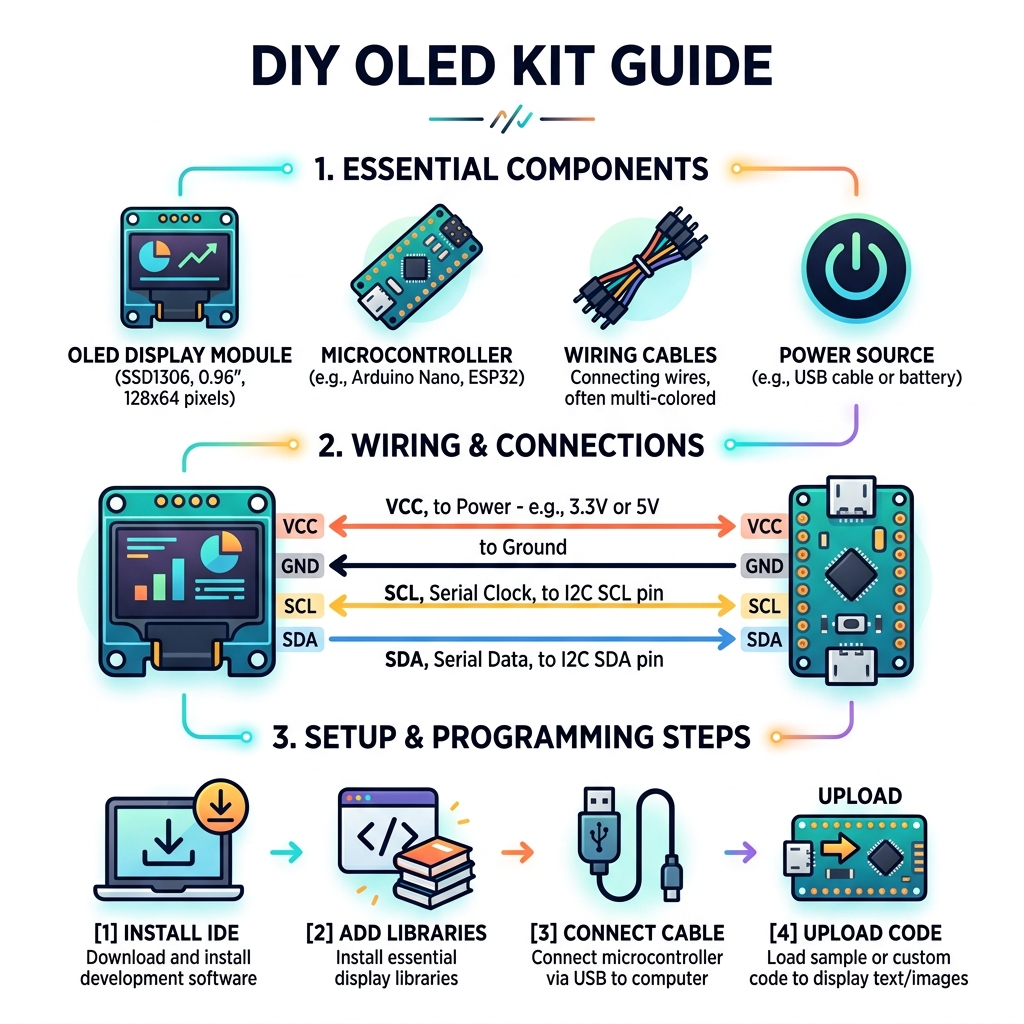
Here’s what a typical DIY OLED kit involves:
- A pre-made OLED module (most commonly the SSD1306, a 0.96-inch, 128×64 pixel display)
- A microcontroller (Arduino Nano, Uno, or ESP32)
- 4 wires connecting VCC, GND, SCL, and SDA pins
- Software libraries (Adafruit SSD1306 and Adafruit GFX) installed in the Arduino IDE
- Code to display text, shapes, or bitmap images on screen
Important: A DIY OLED kit is not about manufacturing an OLED panel from scratch. Fabricating a real OLED requires industrial equipment costing hundreds of millions of dollars. What you can do — and what this guide covers — is buy a ready-made OLED module and program it yourself.
If you’ve ever looked at your classic Game Boy or retro console and thought “this screen could be so much better,” you’re not alone. OLED displays offer deep blacks, high contrast, and razor-sharp visuals — all without a backlight. That makes them a huge upgrade over the washed-out LCD panels in older handheld hardware.
The best part? You don’t need a lab or a chemistry degree. A small OLED module costs just a few dollars, works with beginner-friendly tools, and can be up and running in under an hour.
This guide walks you through everything — from picking the right parts to wiring, coding, and modding your favorite retro device.
Understanding the DIY OLED Kit Guide: Fabrication vs. Integration
When we talk about a DIY OLED kit guide, we need to draw a very clear line between two worlds: scientific fabrication and hobbyist integration.
If you look into OLED Fabrication | How to make an OLED Device | Ossila, you will see that creating a single organic light-emitting diode from scratch is a rigorous 7-step process. It involves cleaning ITO (Indium Tin Oxide) substrates in ultrasonic baths, spin-coating layers as thin as 30 nanometers, and evaporating metal cathodes in a vacuum chamber. While labs can do this with specialized equipment, it is practically impossible to build a high-resolution screen this way at home. A modern screen has millions of pixels; hand-making those is like trying to build a beach one grain of sand at a time.
For us hobbyists and retro gaming enthusiasts, the “DIY” part means taking a professionally manufactured module and integrating it into our own hardware. As noted in How To Make Your Own OLED Screen? – Kelai, while the chemistry is complex, the electronics are accessible. We use pre-made modules like the SSD1306 because they handle the “hard” part—the electroluminescence—leaving us to handle the “fun” part: the pixels. Before you start cracking open your favorite handheld, however, be sure to check out our diy-screen-replacement-safety-tips/ to ensure you don’t zap your motherboard or yourself!
Understanding the DIY OLED Kit Guide: Fabrication vs. Integration
In pre-made modules, there are two main categories: PMOLED (Passive Matrix) and AMOLED (Active Matrix). Most DIY kits use PMOLEDs because they are cheaper and easier to control with simple microcontrollers. These displays consist of individual OLED pixels printed on flexible sheets.
One fascinating example is the Wisechip Flexible Grayscale OLED. This 1.81-inch display has a resolution of 160×32 pixels and is less than 0.5mm thick. Because it’s printed on a flexible substrate, it can be bent to a 40mm radius without breaking! Whether you are building a futuristic wearable or a custom keyboard, as seen in the OLED displays | About Split Keyboards – Build Guide | splitkb.com documentation, these modules are the gold standard for high-contrast, low-power visuals.
How to Program and Customize Your DIY OLED Kit Guide
Once you have your hardware, the magic happens in the code. To make your DIY OLED kit guide come to life, you’ll need two primary libraries in the Arduino IDE: Adafruit_GFX and Adafruit_SSD1306. These libraries act as the “translator” between your logical commands (like “draw a circle”) and the thousands of tiny pixels on the screen.
Projects like the Build the ArduinOLED show just how versatile these screens are. You can program:
- Text Sizes: From tiny labels to massive numbers.
- Scrolling: Moving text horizontally or diagonally across the screen.
- Bitmaps: To display custom logos or icons, you’ll need to convert an image into a “C array” (a long string of numbers representing black and white pixels). Tools like LCD Image Converter make this easy—you just upload your photo and copy the resulting code into your Arduino sketch.
Essential Components for Your DIY OLED Kit Guide
To get started, you need to gather your “squad” of components. Choosing the right module depends on how much detail you need and how fast you want the screen to refresh.
| Feature | SSD1306 (Standard) | SSD1320 (Flexible/Grayscale) |
|---|---|---|
| Resolution | 128×64 or 128×32 | 160×32 |
| Interface | I2C (4 pins) | SPI (6-7 pins) |
| Color | Monochrome (Blue/White/Yellow) | 4-bit Grayscale (16 levels) |
| Complexity | Very Easy | Moderate |

1. The Microcontroller: The “brain” of your project. An Arduino Nano is perfect for small projects because it fits on a breadboard. If you need more power or Wi-Fi, the ESP32 is a beast, though you’ll need to be careful with voltage levels.
2. The OLED Module: As we’ve explored in Character OLED Displays: A Comprehensive Guide to Working Principles a, these modules use a controller chip (like the SSD1306) to manage the pixels. Look for modules that support the I2C interface if you want the simplest wiring (only 4 pins).
3. Level Shifters and Power: Most OLEDs run on 3.3V. If you’re using a 5V Arduino Uno, ensure your OLED module has a built-in voltage regulator. If not, you’ll need a logic level shifter to prevent the 5V signals from frying the delicate 3.3V OLED circuitry. For more on the basics of hardware mods, check out our screen-modding-tutorial-for-beginners/.
Step-by-Step Wiring and Hardware Setup
Wiring is where many beginners get stuck, but it’s actually quite logical. For a standard I2C OLED, you only have four connections to make.
- VCC: Connect to 3.3V (or 5V if your module supports it).
- GND: Connect to the Ground pin on your Arduino.
- SCL (Serial Clock): Connect to pin A5 on an Arduino Uno/Nano.
- SDA (Serial Data): Connect to pin A4 on an Arduino Uno/Nano.
Pro Tip: If you are experiencing “ghosting” or the screen isn’t turning on, you might need pull-up resistors. Adding a 4.7k ohm resistor between VCC and SCL, and another between VCC and SDA, can help clean up the signal, especially if you’re using long wires.
When installing these into a tight space—like a retro console shell—insulation is key. We recommend using Kapton tape (a heat-resistant, non-conductive tape) on the back of the OLED module. This prevents the metal components on the back of the screen from shorting out against the pins of your microcontroller. This is a standard practice we discuss in our backlight-mod-for-original-game-boy/ guide to keep your hardware safe.
Practical Projects: From Sensors to Retro Console Mods
So, what can you actually do with a DIY OLED kit guide? The possibilities are limited only by your imagination (and maybe your RAM).
1. The “Weather Station” By connecting a DHT11 sensor, you can turn your OLED into a real-time display for temperature and humidity. It’s a classic beginner project that teaches you how to refresh the screen with dynamic data rather than just static text.
2. Retro Console Upgrades This is our bread and butter at Ganhos Reais. Many enthusiasts use these small OLEDs to add a “Status Screen” to a Game Boy Advance. Imagine a tiny screen tucked into the battery compartment or a custom shell that shows your battery voltage or even the name of the ROM you’re playing. You can find deep dives on this in our oled-mod-installation-for-retro-consoles/ and game-boy-advance-screen-mod-tutorial/ sections.
3. Volumetric Displays For the truly adventurous, check out the TENEX – Solid State Volumetric OLED Display. This project stacks multiple transparent OLEDs on top of each other to create a 3D “holographic” effect. It’s a mind-bending way to use OLED technology that moves beyond flat screens.
Troubleshooting and Overcoming Hardware Limitations
Even the best DIY OLED kit guide can’t prevent every hiccup. If your screen is blank, don’t panic!
- The I2C Address: Not all OLEDs are created equal. Some use the address
0x3C, while others use0x3D. If your code isn’t working, run an I2C Scanner sketch (available in the Arduino IDE examples). It will tell you exactly what address your screen is using. - Flickering: This usually happens if you are clearing the entire screen (
display.clearDisplay()) too often in your loop. Try only updating the part of the screen that changes. - Burn-in: OLEDs are made of organic material that wears out. If you leave the same image on for days, it might leave a permanent “ghost.” To prevent this, implement a “screen saver” or a blanking function that turns the display off after 60 seconds of inactivity.
That hobbyist-grade OLEDs have limits. A 128×64 resolution is great for text, but it won’t play 4K video. If you try to push too many complex graphics, your Arduino’s processing power and RAM (only 2KB on a Nano!) will quickly run out. For safety during these complex builds, always refer back to our diy-screen-replacement-safety-tips/.
Frequently Asked Questions about DIY OLED Kits
Can I build an OLED screen from scratch at home?
The short answer is: No, not really. As we mentioned earlier, true OLED Fabrication | How to make an OLED Device | Ossila requires a cleanroom environment and vacuum evaporation equipment. However, you can buy pre-patterned ITO glass and organic materials if you want to experiment with making a single glowing pixel in a lab setting. For 99% of us, “building” means “assembling and programming.”
What are the best libraries for Arduino OLED projects?
The Adafruit_SSD1306 and Adafruit_GFX libraries are the most popular because they are incredibly well-documented. If you find those too “heavy” for your microcontroller’s memory, the U8g2 library is an excellent alternative. it supports hundreds of fonts and is optimized for low-RAM devices.
How do I display custom images on my OLED?
You must convert your image into a monochrome bitmap. Since the screen only knows “On” or “Off,” your image needs to be strictly black and white. Once converted into a C array, you use the drawBitmap() function. Just remember: a 128×64 image takes up 1,024 bytes of flash memory, which is a big chunk of an Arduino’s storage!
Conclusion
Upgrading your hardware with a DIY OLED kit guide is one of the most rewarding entry points into electronics and modding. Whether you’re building a simple temperature sensor or performing a complex oled-mod-installation-for-retro-consoles/, the high contrast and vivid colors of an OLED will breathe new life into your projects.
At Ganhos Reais, we believe that the best way to honor classic gaming is by blending it with modern technology. Now that you know the components, the wiring, and the code, it’s time to pick up a soldering iron and start your own display revolution.
Ready to take your modding skills to the next level? Explore more screen modification guides and join our community of hardware hackers today!
